
A product visual may need to work in a horizontal presentation and a vertical social post. A short movement can make both versions feel connected, but a crop that hides the object or leaves no room for a caption can undo the benefit. Before making multiple exports, plan one motion study and check where the subject and text would sit in each frame.
Disclosure: This article was prepared by the Flyne AI brand team. The bottle images are planning illustrations, not footage or the results of a generator test.
Do not use a single crop as proof that every placement works. Put temporary wide, square and vertical frames over the still in your editor. Move each frame until the bottle remains visible. Mark where a caption could sit without covering it. A frame is a planning guide, not a guarantee that a platform will display an identical crop on every device.
 Planning illustrations suggest a wider opening and closer ending; they are not generated video frames.
Compare both endpoints within each frame. If the closer endpoint fills the vertical crop but the opening view leaves the object too small, change the two compositions before requesting movement. If you cannot keep the object and readable copy comfortably separate, make a distinct vertical layout instead of forcing the wide one into it.
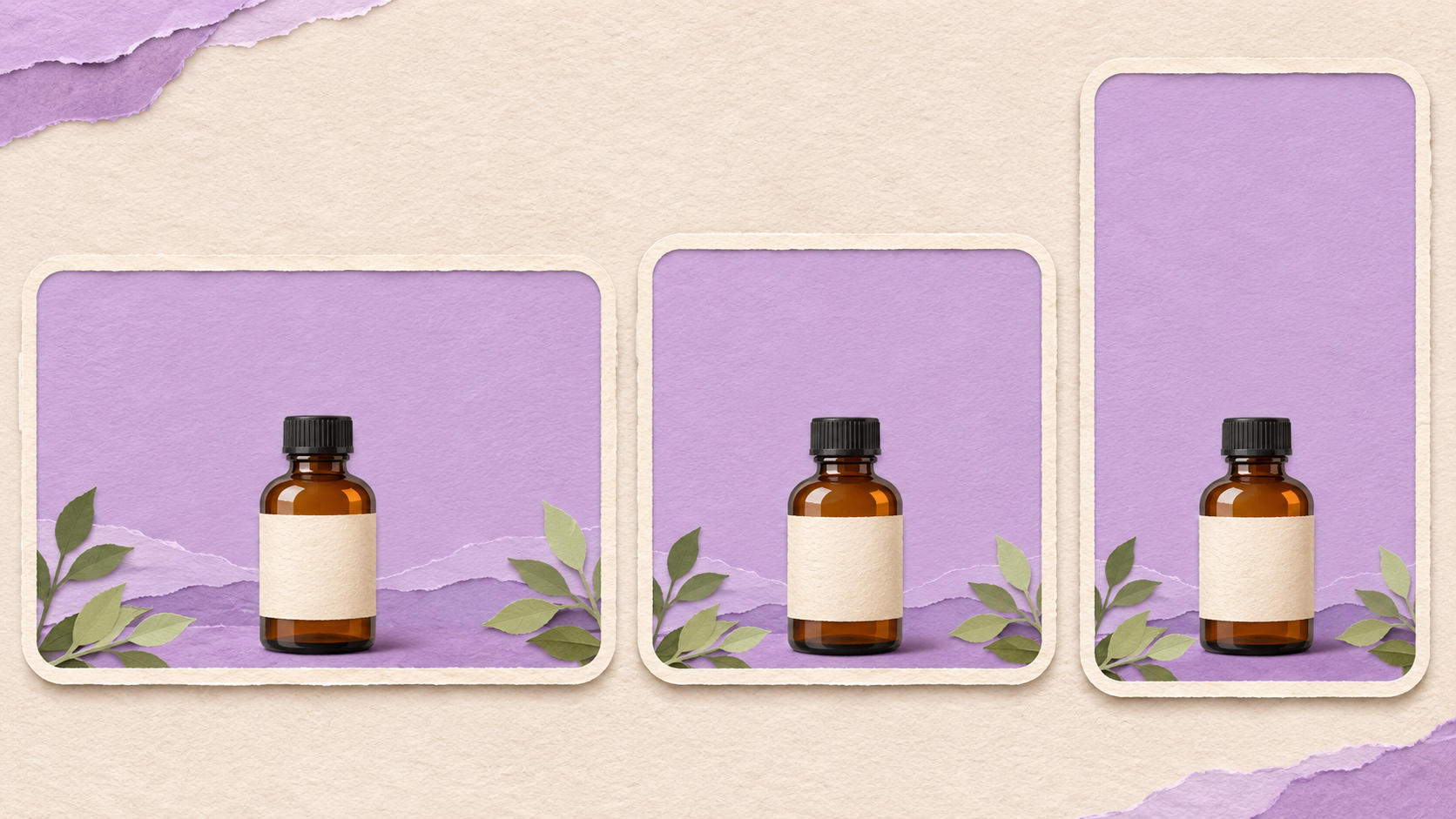 Three illustrated compositions show the subject and open space in different shapes; check the actual crop in your editor.
For a closer ending, prepare an image with the same product, orientation and light. Do not introduce a new surface and a second camera angle at the same time. When several elements change, it becomes harder to tell which change made a crop fail. Check that neither endpoint places an important detail near the edge of the narrowest intended frame.
Think of the edit in three beats: establish the object, approach it, and leave a readable end. The crop illustrations are separate design studies, not a generated timing result. When you review a generated clip, check whether the object stays inside each intended crop throughout the move, not just at the beginning and end.
On Flyne AI, select the image route and provide the first and last images plus a motion instruction. The page lists MiniMax H3, a five-second 480p free output and 16:9, 9:16 and 1:1 choices. It says no signup is required and there is no total generation-count cap. A verification step is required before submission, and the free queue can involve waiting. Treat “unlimited” as the stated count policy, not a promise of immediate processing.
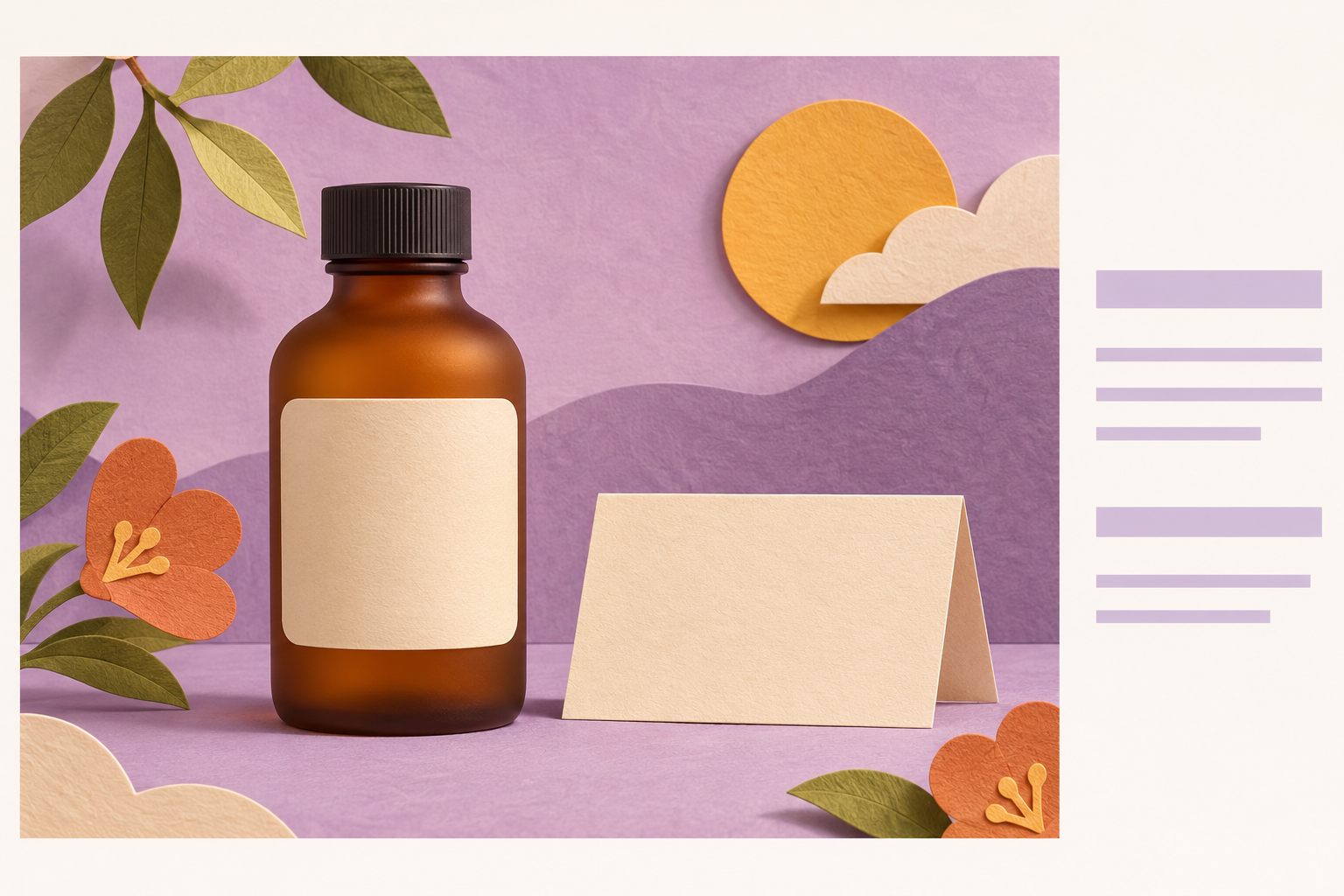 An empty area beside the subject can accommodate wording added later in an editor.
Watch the preview with the text layers visible. Check the start, the middle and the end: does a moving edge pass under the caption? Does the subject overlap the reserved area? Does a pale background make the text hard to read? If the answer changes across the clip, use a stable panel, a separate opening or closing card, or revise the composition. Check the final layout at the size people will actually see.
A five-second 480p clip is useful for discussing a motion idea; it is not evidence of how a final production export will look. Check each destination's actual crop and output needs separately. Save the endpoints, prompt, intended frame shapes and a short note such as “vertical crop cuts off the cap at the end.” That note tells the next person exactly what to revise.
If a project starts with a written scene instead of prepared endpoint images, FLAQ AI’s free text-to-video tool offers a text-first route. AI VideoWeb’s free AI video generator lists text and two-image routes. They are separate resources for different starting materials; this guide does not compare their output quality.
Disclosure: This article was prepared by the Flyne AI brand team. The bottle images are planning illustrations, not footage or the results of a generator test.
Decide what each crop must show
Start with an image you own or are licensed to use. Note the object, the feature a viewer should notice and the space needed for any copy. Imagine an unbranded amber bottle on a quiet surface. One version is wide for a presentation; another is vertical for a phone. Both should show the whole bottle at the start, and a closer view at the end can bring the bottle forward.Do not use a single crop as proof that every placement works. Put temporary wide, square and vertical frames over the still in your editor. Move each frame until the bottle remains visible. Mark where a caption could sit without covering it. A frame is a planning guide, not a guarantee that a platform will display an identical crop on every device.
Compare both endpoints within each frame. If the closer endpoint fills the vertical crop but the opening view leaves the object too small, change the two compositions before requesting movement. If you cannot keep the object and readable copy comfortably separate, make a distinct vertical layout instead of forcing the wide one into it.
Make the background easy to read
A plain background is not the only option, but it should not compete with the object. Look for a strong line passing behind the subject, a bright reflection near the edge or an object that seems to touch the product. Simplify only what distracts from the intended view. Keep a copy of the original so that you can return to it.For a closer ending, prepare an image with the same product, orientation and light. Do not introduce a new surface and a second camera angle at the same time. When several elements change, it becomes harder to tell which change made a crop fail. Check that neither endpoint places an important detail near the edge of the narrowest intended frame.
Give the movement a beginning and an end
Choose one movement that fits the layout. For the bottle, the brief could be: “Move slowly toward the closed bottle. Keep its outline and the quiet background visible. Do not turn or open the bottle.” This states an intention; it does not give exact keyframes or guarantee that every detail will remain unchanged.Think of the edit in three beats: establish the object, approach it, and leave a readable end. The crop illustrations are separate design studies, not a generated timing result. When you review a generated clip, check whether the object stays inside each intended crop throughout the move, not just at the beginning and end.
On Flyne AI, select the image route and provide the first and last images plus a motion instruction. The page lists MiniMax H3, a five-second 480p free output and 16:9, 9:16 and 1:1 choices. It says no signup is required and there is no total generation-count cap. A verification step is required before submission, and the free queue can involve waiting. Treat “unlimited” as the stated count policy, not a promise of immediate processing.
Keep wording in the editing layout
Place the product name and any essential wording as separate text layers in your editor. This lets you change their position for a vertical crop and check the spelling against the approved source. Reserve space for the longest expected line rather than assuming a short placeholder will always fit.
Watch the preview with the text layers visible. Check the start, the middle and the end: does a moving edge pass under the caption? Does the subject overlap the reserved area? Does a pale background make the text hard to read? If the answer changes across the clip, use a stable panel, a separate opening or closing card, or revise the composition. Check the final layout at the size people will actually see.
Review each output separately
Compare the object with its source and inspect the edges. A change in shape, cap placement or a newly invented mark can make a concept unsuitable even when the movement is attractive. Keep the original asset and approved wording available so that a designer can rebuild the final composition if needed.A five-second 480p clip is useful for discussing a motion idea; it is not evidence of how a final production export will look. Check each destination's actual crop and output needs separately. Save the endpoints, prompt, intended frame shapes and a short note such as “vertical crop cuts off the cap at the end.” That note tells the next person exactly what to revise.
If a project starts with a written scene instead of prepared endpoint images, FLAQ AI’s free text-to-video tool offers a text-first route. AI VideoWeb’s free AI video generator lists text and two-image routes. They are separate resources for different starting materials; this guide does not compare their output quality.